Introduction
What Clarami is: workspace, New document, Library, References, Review, Clara (draft-focused chat), Help center, and citations.
Clarami is an AI research assistant for students and professionals: plan and draft research-aligned writing, manage sources and citations, and export when your plan allows. When you are signed in, you work mainly from Workspace at the /documents route, with New document, Library, References, and Account in the sidebar (plus Writing style under Account when you want AutoDraft defaults and related preferences).
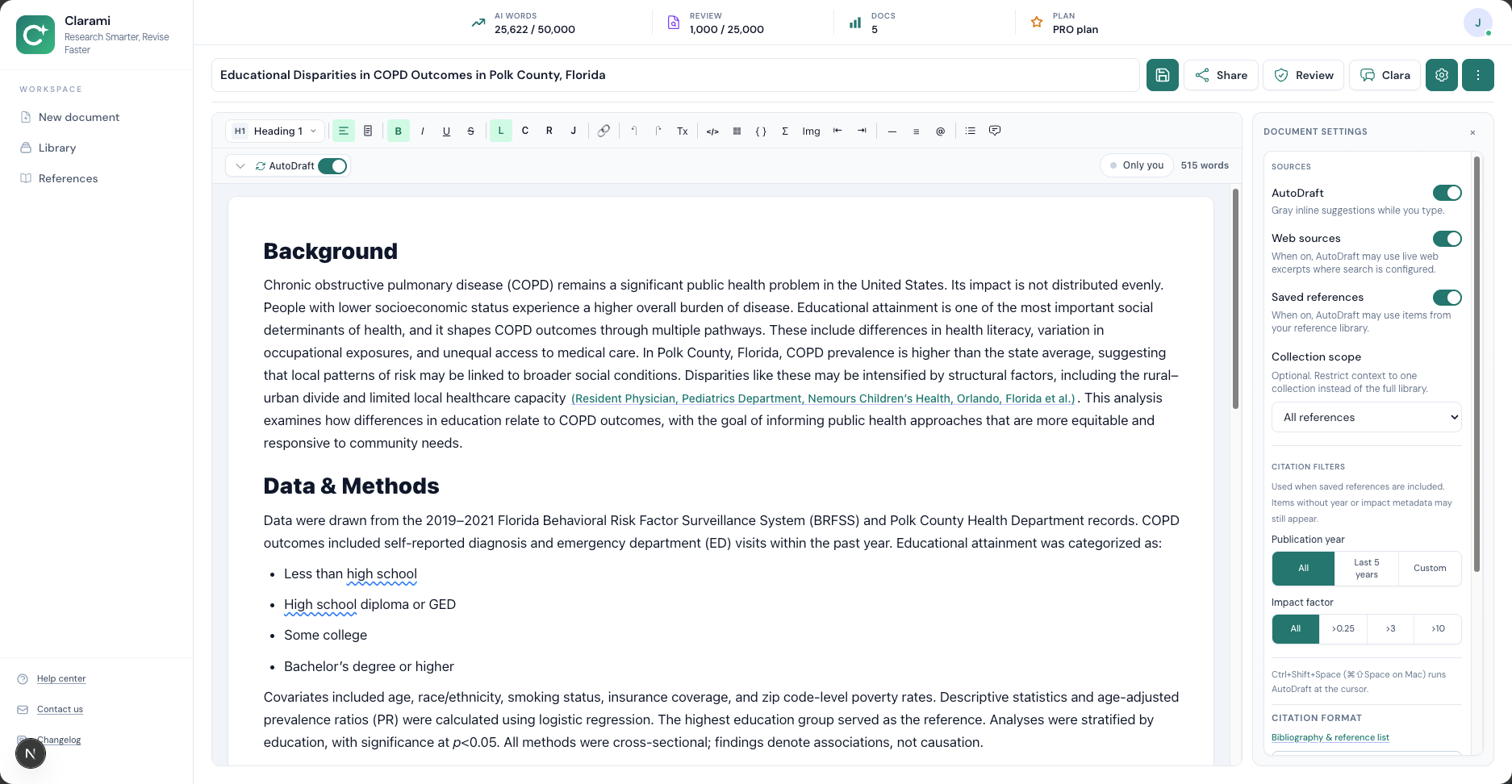
Fig 1
The Clarami workspace after first login. Library and other sidebar items are on the left; the document title bar (title, Share, Review, Clara when enabled, Document settings gear, ⋯ for export and more) sits above the editor; the toolbar under that includes AutoDraft, citation tools, and word count.
Main areas
- Workspace — Create or open documents from /documents, set the title, optional import, and complete Document settings / New document fields your workflow shows, then write in the rich-text editor. Use AutoDraft for ghost-text suggestions while typing (toggle on the editor toolbar; account-wide defaults are under Account → Writing style). For rewrites on a selection, use the Refine menu in the editor. Run Generate draft and other AI tools when your plan and document settings allow, and use citations and export when your plan includes them (quick Export lives under More document actions, ⋯, in the document title bar). From the document header, open Review (advisory checks) or Clara (in-editor chat focused on your draft; for product walkthroughs use Help center) when your plan includes them; each opens a right-hand panel.
- New document — Start another saved document from New document in the sidebar or from the Library rail header on /documents. You can often import a Word file at the start, set the title, then use Document settings (gear in the document title bar) for any required setup fields before you run Generate draft. See New documents and copies and New documents and document setup.
- Library (sidebar) — Your saved documents and folders. On /documents, hover Library to preview the rail, or click to pin it open; use the chevron in the rail to collapse. This is separate from saved references used for citations. Share folder in Library is a different scope from Share next to the open document’s title; see Sharing: documents vs Library folders.
- References (sidebar) — Your saved citation sources on supported plans. Same hover to preview / click to pin behavior as Library. Older /templates bookmarks may redirect into Workspace; new work starts with New document and Document settings on /documents.
- Account & pages — Subscription, billing, Writing style (AutoDraft defaults and related preferences), contact, this help center, and related shortcuts.
Clara
In the document header, Clara opens in-editor chat focused on your draft: revising, structure, tone, and whether parts of the text may need citations (availability and limits depend on your plan). For product how-tos—where to click, exports, DOI insertion steps, Library vs references, billing—use the Help center (/help from the sidebar) and search there (⌘K / Ctrl+K). Clara will usually point you to Help for those topics instead of long UI walkthroughs.
Document context: Clara receives the title and plain text of your document (up to a size limit). If you highlight text before you send, she also gets that selection—do that when your question is about a specific paragraph. Optional web or saved references context is included only when you turn those options on for that message (when your plan and setup allow).
What to say so Clara can align with your goals (she does not see rubrics or unstated rules unless you describe them):
- Assignment type and level — e.g. argumentative essay, lab report, literature review; course or audience.
- Intent — thesis or claim, required sections, length limits, citation style when your question is about cites.
- Scope — whole draft vs highlighted section only; what you want (structure, tone, missing citations).
Use the same kind of detail you put into New document / Document settings setup fields (genre, audience, constraints) when you want useful answers about your text.
Help center first (product how-tos): Topics such as inserting a citation from a DOI, Generate draft prerequisites, Library vs saved references, title-bar Share vs Share folder, export to Word/PDF, and citation assist vs similarity are covered in dedicated articles—for example Insert citation, Full-document drafting, Sharing: documents vs Library folders, Document library, Saved reference library, Export and print, and Citation assist vs similarity. Open Help and search.
Example prompts for Clara (your draft):
- “I’m writing a persuasive essay for a first-year writing course. Does my introduction state a clear thesis, and where could I add a counterargument?”
- “I highlighted this paragraph—does it read like past-tense methods, and is anything missing for a short lab report?”
- “Does every paragraph that needs a citation have one, given APA in-text style for this draft?”
More goals and flows: Use cases. Clara details: Clara in-app help.
Citations vs library
- In-document citations and Refresh references update the bibliography from citation blocks in the draft.
- Saved references (sidebar when your plan includes it) stores DOIs, imports, and synced items for reuse via Insert citation → From library.
See also Citation management and Saved reference library.