Document editor
Document title bar, toolbar, Document settings, Document tools (Review rail), Comments, and Version history around the writing surface.
This page describes the document editor column in Workspace: the document title bar, toolbar, Document settings panel, Document tools rail, Comments, and Version history. Sidebar navigation (Library, References, Account, and similar) is covered in Introduction.
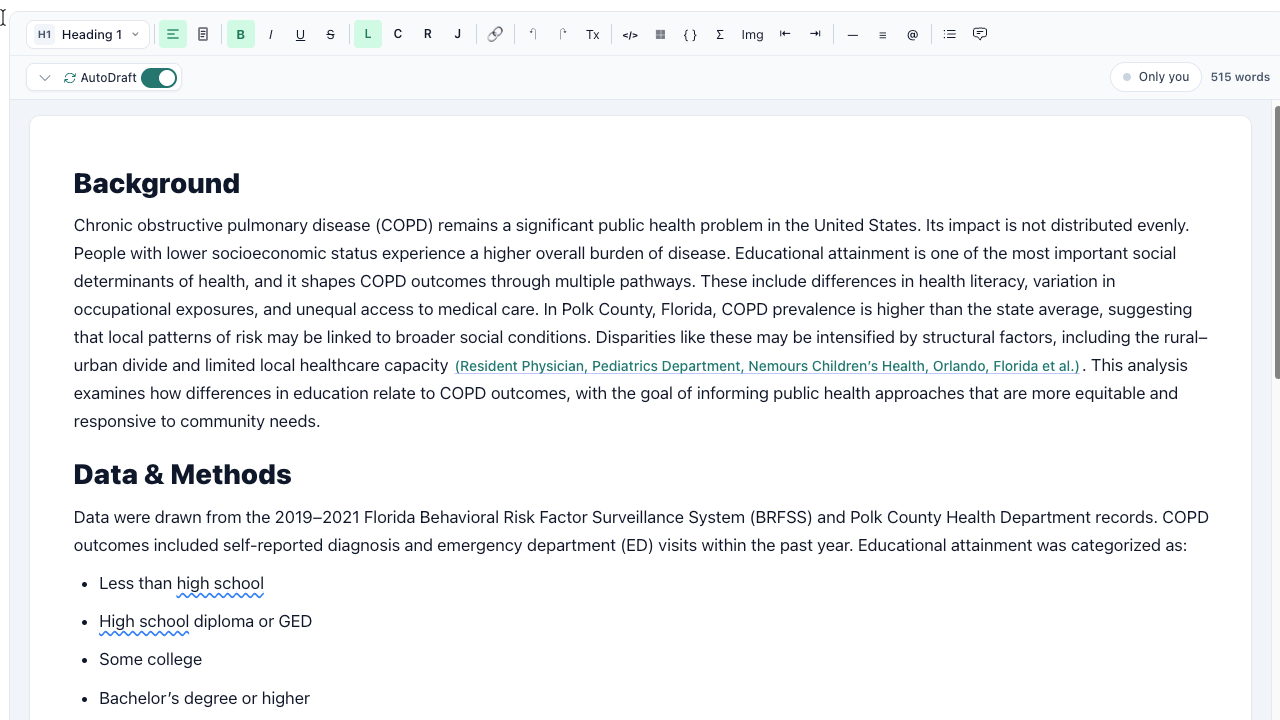
Fig 1
The document title bar sits above the toolbar and the main writing surface.
Document title bar

Fig 2
The document title bar (title, save, share, review, Clara, document settings, and more document actions) sits above the toolbar and the main writing surface.
It includes:
- Document title — Editable field at the top of the column (read-only when you are a Viewer).
- Save — Explicit save control next to the title; the app also autosaves while you work. A compact save status indicator appears in the top app bar when a document is open.
- Share — Opens sharing for this document only (owners): invites and roles for real-time collaboration on this draft. Not the same as Share folder in Library (see Sharing: documents vs Library folders).
- Review — Opens Document tools on the right (see below). Click Review again to close the rail.
- Clara — When your plan includes it, opens in-editor chat in the same right-hand rail area as Document tools; only one of these panels is shown at a time.
- Evidence trace — When available, opens a side panel to link paragraphs to saved references (or approved web evidence), view an evidence ledger grouped by headings, and work with optional Clara suggestions before you approve links. This is separate from Insert citation; see Evidence trace.
- Document settings — Gear icon. Toggles the Document settings side panel (for example AutoDraft, bibliography / citation tools, collaboration options, and other workflow fields—exact sections depend on your plan).
- More document actions (⋯) — Opens a menu with Export (Word, copy HTML, LaTeX when enabled; optional Include evidence ledger and trace JSON when available), Comments, Version history, and Help: new documents and prompts (short guide aligned with the current workspace).
Toolbar

Fig 3
The toolbar includes the top row with paragraph style, alignment, bold/italic/underline/strikethrough, inserts for link, code block, table, equations, and image, list controls, @ mention, and undo/redo (plus other formatting shortcuts), and the bottom row with AutoDraft controls, collaboration presence (who else is in the document), and live word count.
The main surface below is rich text (headings, lists, tables, images, and citation nodes when enabled). On an empty line, / opens the slash command menu; @ can open Insert citation when citations are on your plan; Ctrl+Shift+C (Windows/Linux) or ⌘⇧C (macOS) inserts a citation when available. Bibliography actions (style, page numbers in citations, Refresh references) appear on the bibliography strip when that block exists in the document.
For ghost-text while typing, see AutoDraft. For AI on a selection, see Section AI and selection tools. For New document setup and the Refine menu, see New documents and document setup.
Document settings
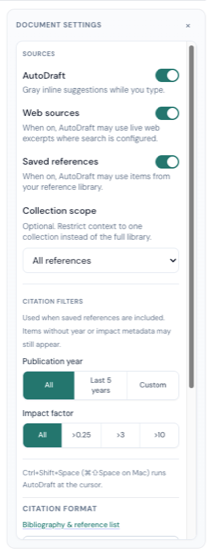
Fig 4
Document settings is the side panel opened by the gear icon in the document title bar.
Use the gear in the title bar to open or close Document settings beside the editor. Depending on your plan and layout, this panel typically includes AutoDraft controls, bibliography / citation style tools, collaboration presence options, and other document-level fields. Generate draft prerequisites and structured setup fields may appear here or in the New document flow next to the editor—complete anything the UI marks required before you run a full generation pass. For rewrites on a highlight, use the Refine menu in the editor (see New documents and document setup).
Document tools
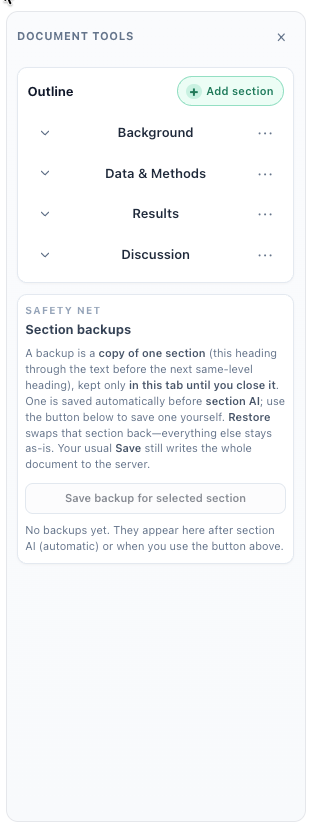
Fig 5
Document tools is the right-hand panel opened by Review in the title bar.
Use the outline toolbar button to open the Document tools panel. It hosts advisory workflows such as proofreading, citation assist, and related checks—names, ordering, and limits depend on your plan and environment. Drag the vertical resize control on the left edge of the rail to change width. If the panel feels like it “disappeared,” click Review again to reopen it.
Comments
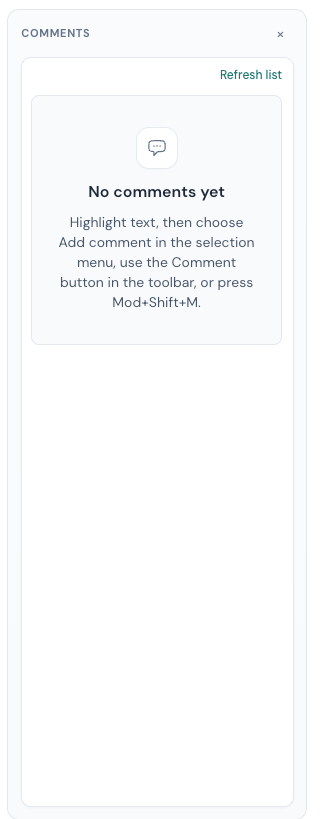
Fig 6
Comments is the right-hand panel opened by Comments in the title bar.
- Open the panel: More document actions (⋯) → Comments. The menu entry stays disabled until the document has at least one collaborator (the UI invites you to share first).
- Start a thread from the draft: highlight text, then use the selection Add comment row, the toolbar Comment control, or Ctrl+Shift+M (Windows/Linux) / ⌘⇧M (macOS).
- Roles: Editor / Owner can edit the draft, comment, and resolve threads; Commenter can comment only; Viewer can read comments but not edit the document.
Version history
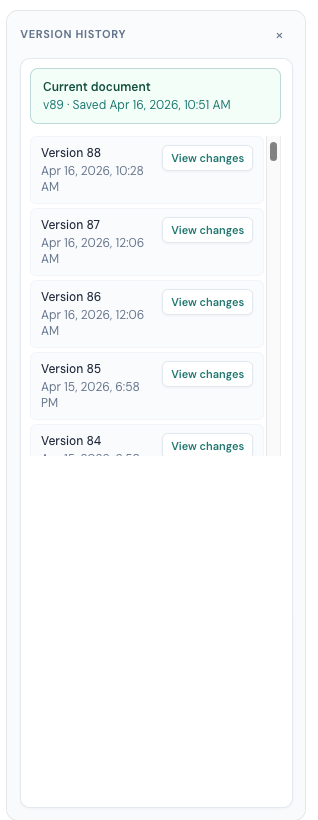
Fig 7
Version history is the right-hand panel opened by Version history in the title bar.
Open Version history from More document actions (⋯). You can browse snapshots (including auto-saves on each content save), save a named snapshot, compare two versions or a snapshot to the current editor (plain-text diff), and restore an older snapshot into the editor when you can edit the document. On plans where history is limited, the panel explains what is available.
See also: Sharing: documents vs Library folders, Insert citation, Full-document AI drafting, Troubleshooting.